
DocCoreX Studio
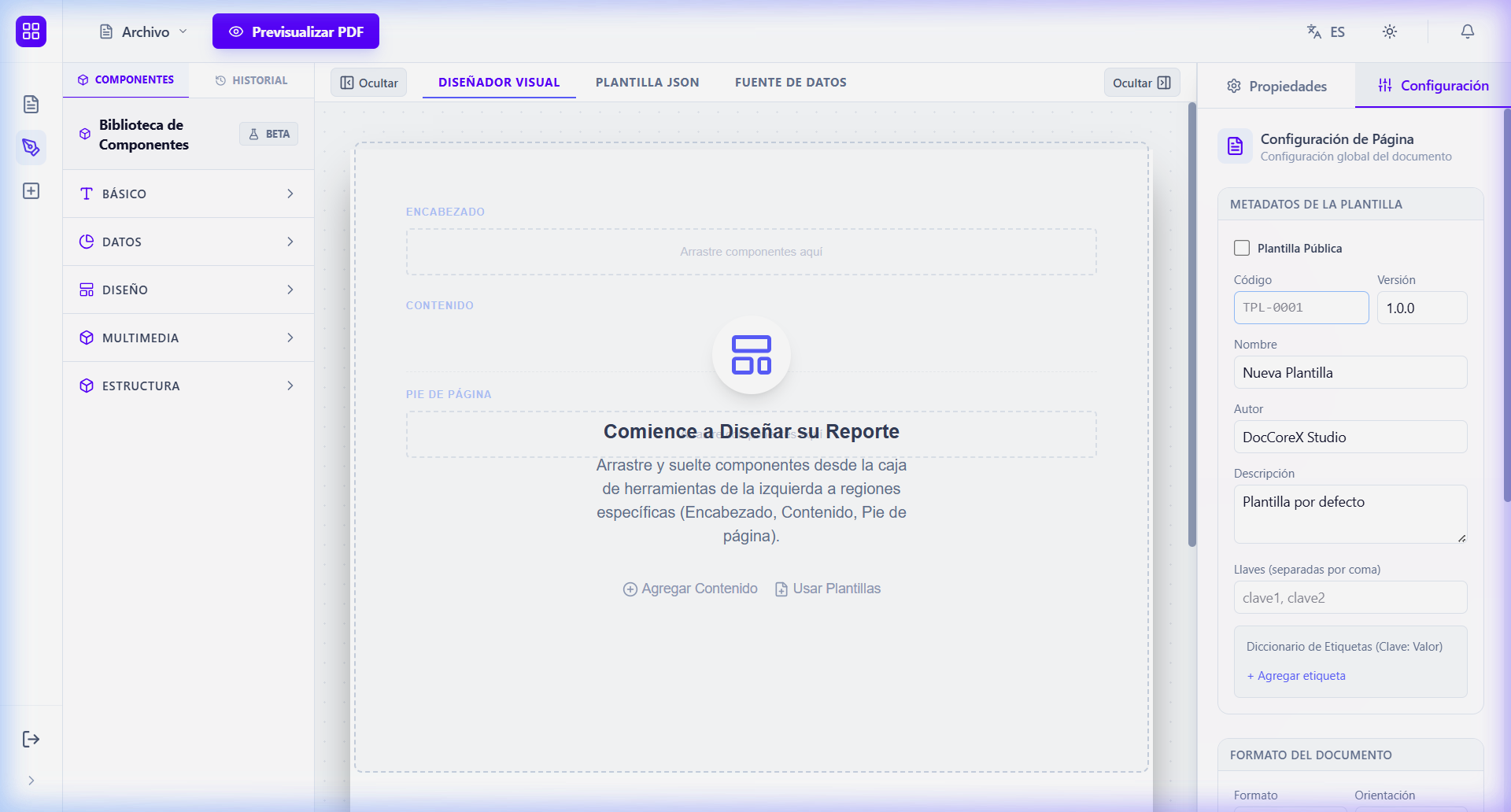
The Studio is the visual design center of DocCoreX. This is where you transform your ideas into professional document templates using an intuitive drag-and-drop interface.
📁 File Menu
Located at the top left corner, the File menu centralizes the main document management operations:
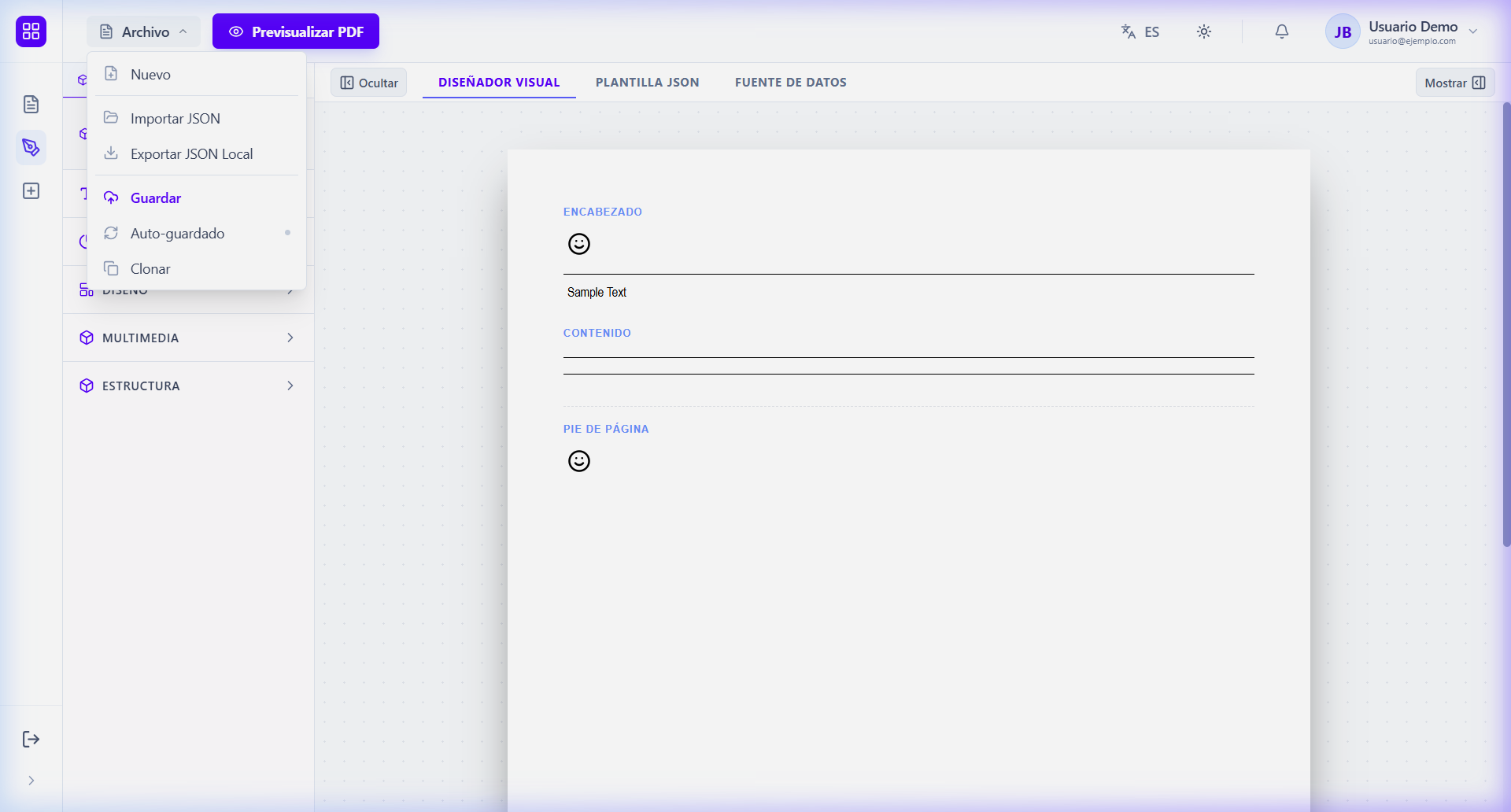
- New: Starts a blank canvas.
- Save: Stores current changes to the server.
- Import JSON: Loads a design from a local file.
- Export JSON: Downloads the current design for backup or transfer.
- Clone: Creates a copy of the current template.
👁️ Preview
Before saving or publishing, you can visualize how the final document will look using the Preview button in the top bar.
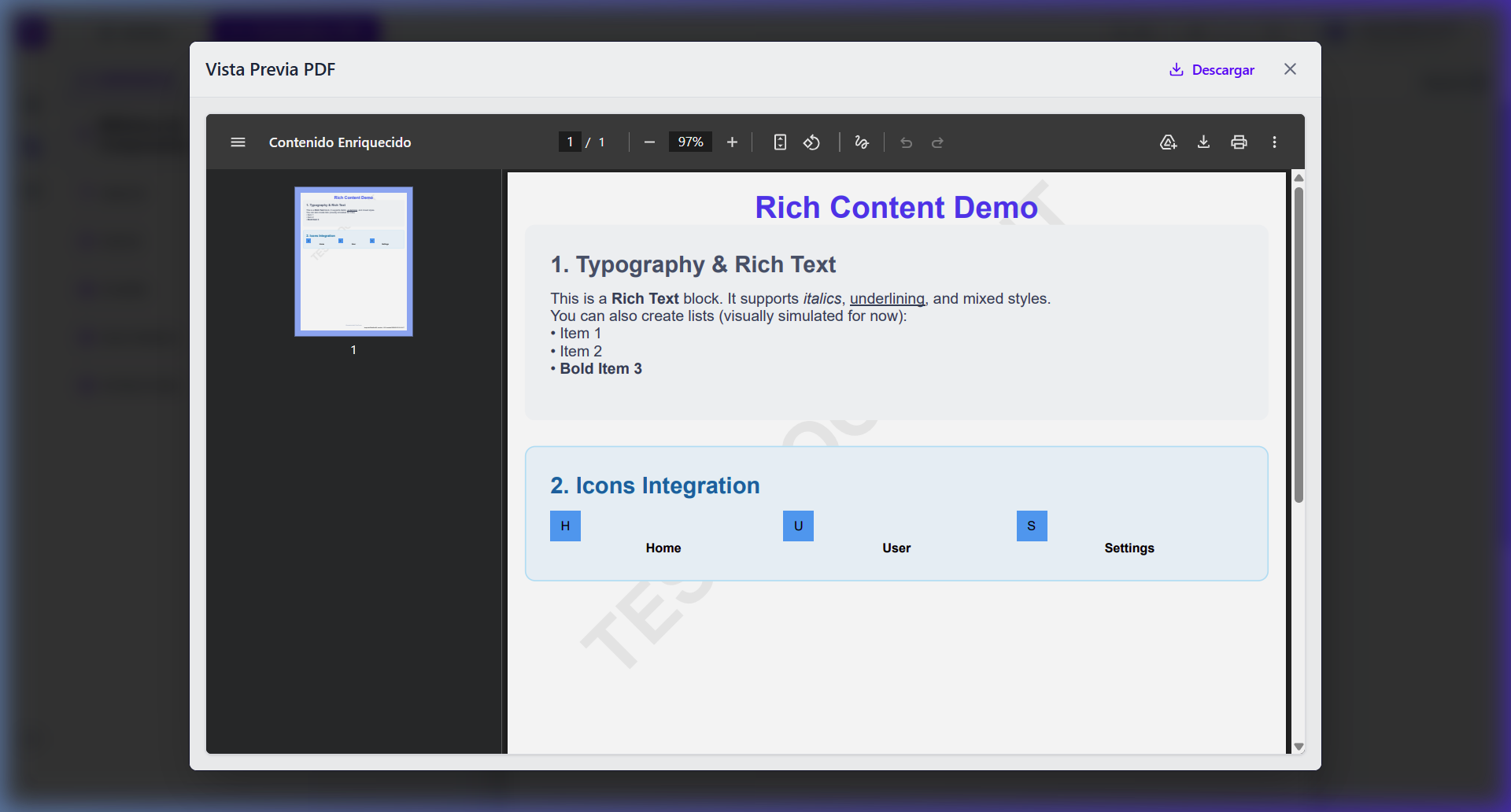
This will open a modal where the PDF is rendered using test data, allowing you to verify margins, fonts, and component layout in real-time.
🛠️ Editor Areas
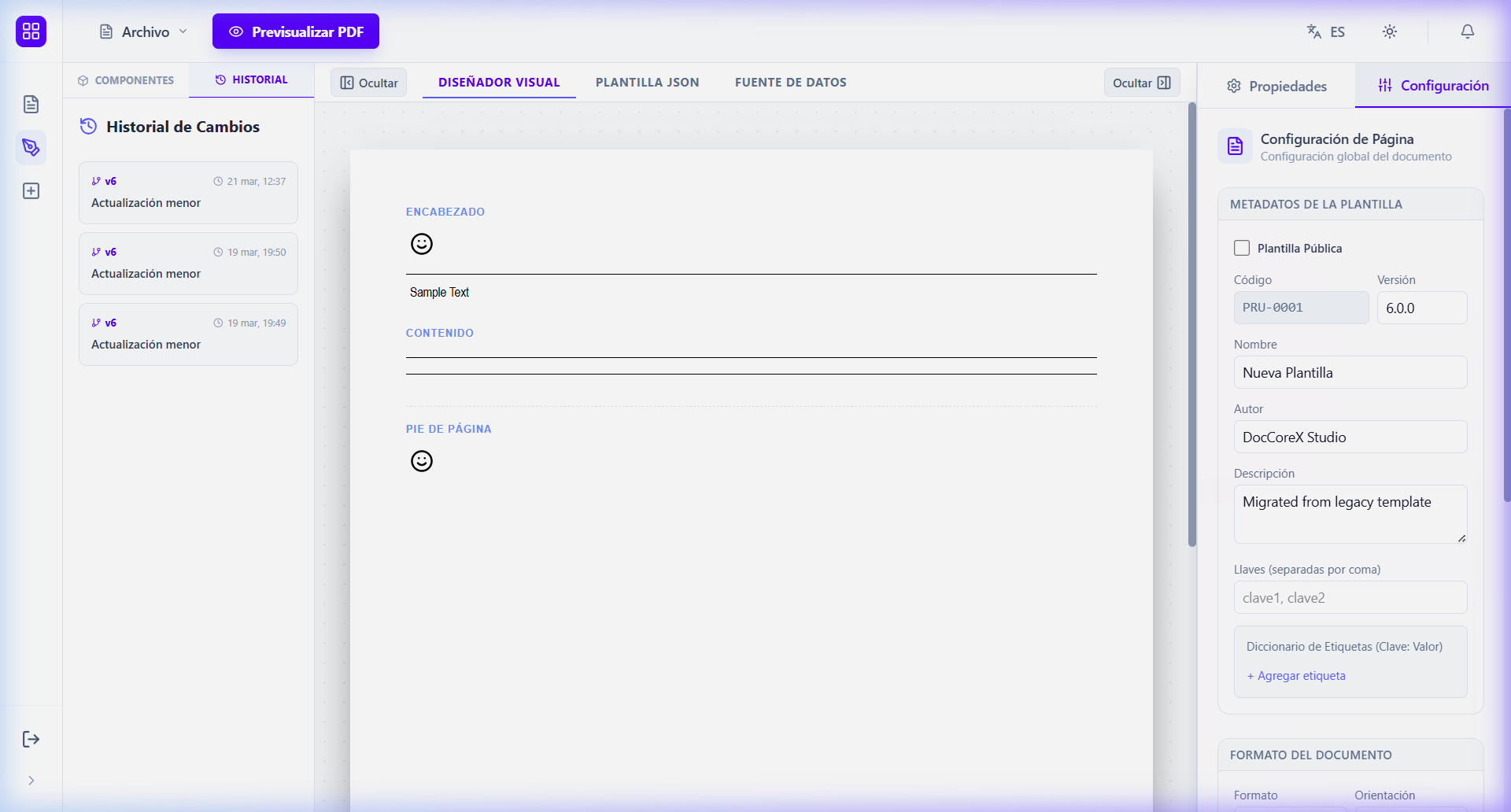
The Studio interface is divided into several strategic zones to facilitate design:
1. Top Bar (Topbar)
Located at the very top, it contains global template actions:
- Preview PDF: Generates a real preview with test data.
- Language Selector: Changes the interface between Spanish and English.
- Session Management: Notifications and user profile.
2. Left Panel (Sidebar)
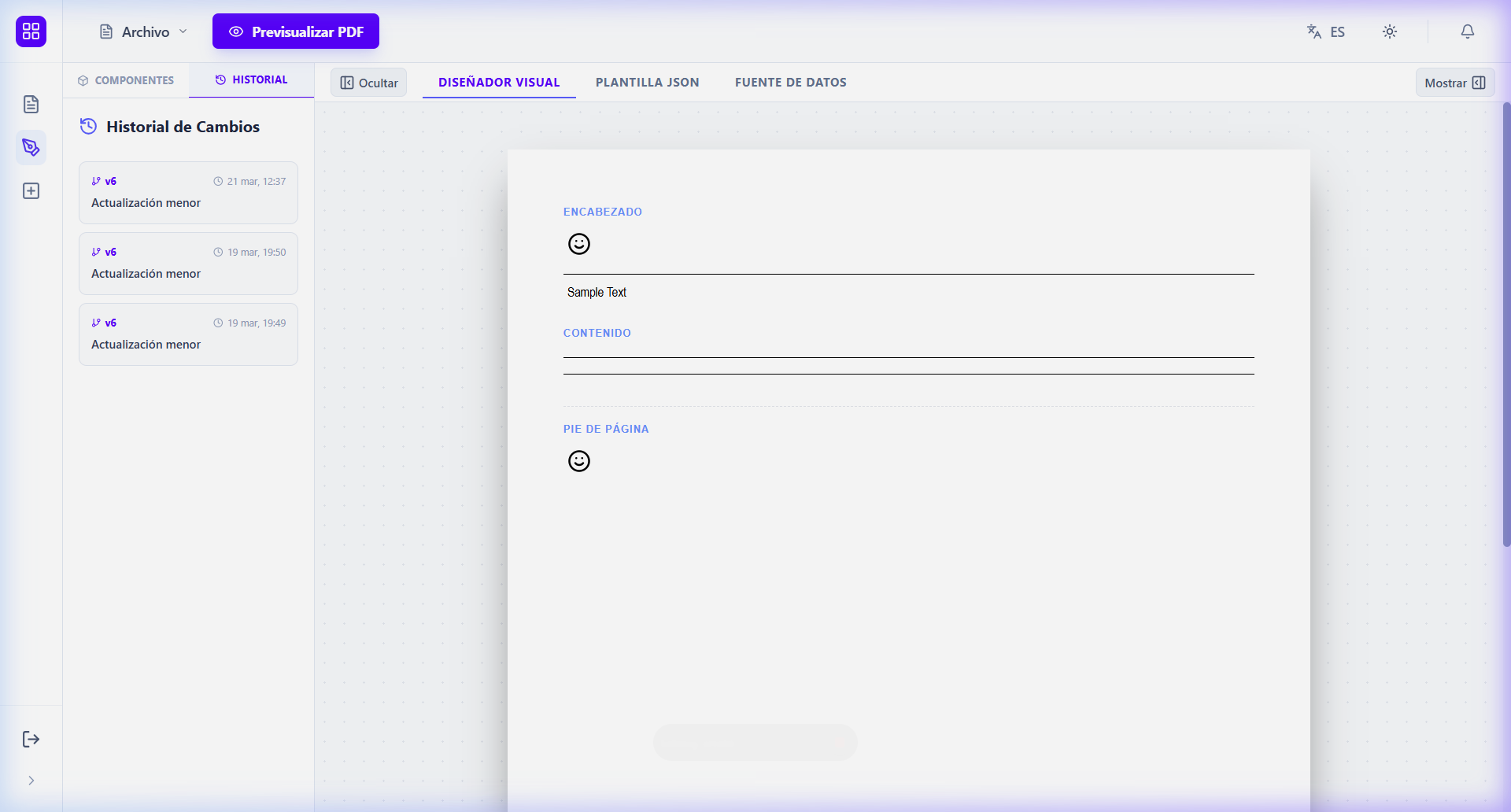
This sidebar has two main tabs:
- Component Library: Contains all available elements to add to the design (Text, Images, Tables, etc.).
- History: Shows a chronological list of saved changes, allowing you to go back to previous versions.
3. Tool Bar (Toolbar)
Just above the canvas, it allows you to toggle how you view your work:
- Visual Designer: The default drag-and-drop view.
- JSON Template: View of the underlying code (for advanced users).
- Data Source: Define test data for previewing.
- Visibility Controls: Buttons to hide or show the side panels.
4. Right Panel (Properties)
Divided into two sections depending on what you have selected:
- Properties: Shows specific settings (styles, content, mappings) for the component selected on the canvas.
- Configuration (Page Properties): Appears when no components are selected. Allows you to edit template metadata (Name, Version, Author) and document format (A4, Letter, Orientation).
5. The Canvas
The central area where you design your report. It is divided into three regions:
- Header: Repeats at the top of all pages.
- Content: The main body of the document.
- Footer: Repeats at the bottom of all pages.
[!TIP] You can hide the side panels using the Hide buttons to have a wider design area on small screens.